2023.02.01 5일차 CSS
CSS
여러 element들이 어떻게 배치되는지 알아봤다.
블록 element는 마진패딩보더 등을 원하는대로 할 수잇엇는데 인라인은 안됬다.
인라인도 마음대로 하고싶었을 때 inline-block을 하면됫엇다. 코드를 읽기가 힘들어졋엇다.
가로축 기준으로 배치하는 것 flex박스가 등장하게 되었다.
css에서 flex박스를 사용하면.
https://css-tricks.com/snippets/css/a-guide-to-flexbox/ 강사님이 주로 사용하는 사이트
46. flexbox
flexbox는 element를 가로축을 기준으로 배치한다.
flexbox를 뜯어보면 밖에 있는 element와 안에있는 element로 나누어진다.
바깥을 container라고 하고 안의 element를 flexitem이라고 한다.
<style>
    .container{
        display: flex;
    }

    .item{
        color: white;
        background-color: black;
        font-size:24px;
        padding: 15px;
    }
    a{
        color: white;
    }
</style>
<div class="container">
<!-- .item*9 -->
<div class="item">
<a href="#"><i class="fa-solid fa-house"></i></a>
</div>
<div class="item">
HTML
</div>
<div class="item">
CSS
</div>
<div class="item">
JAVASCROPT
</div>
<div class="item">
SQL
</div>
<div class="item">
PYTHON
</div>
<div class="item">
JAVA
</div>
<div class="item">
PHP
</div>
<div class="item">
BOOTSTRAP
</div>
</div>Basics and terminology을 보자. 가로축을 main축이고 이 것을 기준으로 flex item들이 배치가 된다.
90축을 cross 축이라고 한다.
사이트에서 좌측은 container에 적용하는 속성 우측이 item에 적용하는 속성이다.
47. flex-container - justify-content
안쪽의 아이템들은 가장 높은 높이를 가진다.
메인축을 기준으로 아이템들의 배치를 하려면 justify-content를 사용하면 된다.
1.flex-start 메인축을 기준으로 시작지점부터
2.flex-end 메인축을 기준으로 끝지점
3.center가운데 배치
4.space-between element들 사이에 공백
5.space-around elemente들 좌우에 공백
6.space-evenly element들 양끝에 공백넣고 사이에 공백
46번파일 또 작성해보자.
두개의 container가 있는데 얘들을 또 가로로 배치하고 싶다? 얘들을 또 컨텐츠 박스에 묶어주면된다.
.container{
display: flex;
justify-content: space-between;
background-color: gray;
}<div class="container">
<div class="container">
    <!-- .item*9 -->
    <div class="item">
        <a href="#"><i class="fa-solid fa-house"></i></a>
    </div>
    <div class="item">
        HTML
    </div>
    <div class="item">
        CSS
    </div>
    <div class="item">
        JAVASCROPT
    </div>
    <div class="item">
        SQL
    </div>
    <div class="item">
        PYTHON
    </div>
    <div class="item">
        JAVA
    </div>
    <div class="item">
        PHP
    </div>
    <div class="item">
        BOOTSTRAP
    </div>
</div>
<div class="container">
<div class="item">
<i class="fa-solid fa-circle-half-stroke"></i>
</div>
<div class="item">
<i class="fa-solid fa-earth-americas"></i>
</div>
<div class="item">
<i class="fa-solid fa-magnifying-glass"></i>
</div>
</div>
</div> 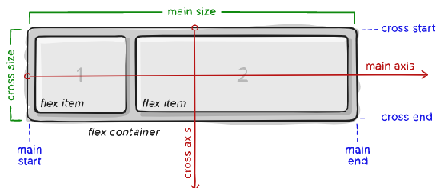
48. flex-container - align-items
flex-start, flex-end, center, stretch, baseline
세로축기준으로 배열해보자. align-items: ;
기본값 stretch 부모 요소만큼 차지함.
flex-start 크로스축 기준으로 시작점
flex-end 크로스축 기준은으로 끝나는 점
center 크로스축 기준 가운데
49. flex-ex3
marin배울때 텍스트를 가운데 둘 수 잇엇다. 위아래 기준으로 가운데 둘때 어렵다라고 배웟엇다.
텍스트를 elementet 기준으로 가운데 놓아보자.
.box{
    width: 300px;
    height: 400px;
    background-color: yellow;
    margin: auto;
    text-align: center;
    display: flex;
    justify-content: center;
    align-items: center;
}
<div class="box">
<span class="item">
Lorem.
</span>
</div>배치하고자하는 item을 인라인으로 감싸고 가로축기준 가운데 세로축기준 가운데로 해서 배치를 해주면 컨텐츠가 가운데가 된다.
50. flex-container - gap
row-gap, column-gap
gap: 20px; element사이에 간격을 줄 수 있다.
 .container{
    display: flex;
    background-color: chocolate;
    height: 300px;
    gap: 20px;
}

.item{
    background-color: skyblue;
}

.item:nth-child(odd){
    background-color: yellow;
}
이외에도 flex-direction을 사용하면 메인축을 바꿀 수있다.
굉장히 많은 옵션이 있음.
flexbox는 하나의 행을 만드는데 사용함.
css grid라는 것이있다. 얘는 2차원으로 element를 배치할때 사용한다.
https://developer.mozilla.org/ko/docs/Web/CSS/CSS_Grid_Layout flex로 해결이 가능한 부분이라 잘 선택해서 사용하자.
51. flex-item
flex property는 flex-grow, flex-shrink flex-basis의 shorthand이다.
51.1 flex-grow
flex container의 남은 공간을 얼마나 차지할 것인지 결정하는 속성이다.
0보다 큰 값을 주면되고 보통 정수를 준다.
flex-grow: 0; 기본값 차지 하지 않겠다. 남은 공간의 비율을 정수만큼 차지 하는 것임.
현재 너비에서 시작한다.
51.2 flex-basis
flex-basis는 남은 공간을 차지하기 전 시작할 너비이다.
기본값 auto 현재 width를 따라게 됨
51.3 flex
flex는 flex-grow flex-basis를 한꺼번에 작성하게 해준다.
기본값은 0 1 auto (flex-grow, flex-shrink flex-basis)
값을 하나만 주면 flex-basis이 0이되고 그 값이 flex-grow값이 된다.
flex : 1; = flex-grow: 1; flex-basis: 0; 이다.
52. flex-ex04
sidemenu와 ad부분은 기본 크기를 가지고 있어서 화면이 줄어도 줄지 않게하고
메인부분만 화면이 줄어듦에 따라 알아서 줄어들게 하고 싶다.
#side-menu{
    background-color: #ccc;
    width: 200px;
}
#ad{
    background-color: yellow;
    width: 200px;
}
#main-content{
    flex : 1;
}
이러면 화면이 커지든 작아지든 안에 컨텐츠만 늘고 줄고의 방식으로 이루어지게 된다.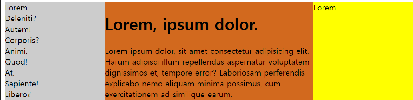
이렇게 head부분 main부분 등을 만들어서 쌓으면 웹페이지가되는 것인 것 같다.
문서 구성하는 방법을 배웠으니 배운것들을 활용해보면 될 것 같다.
53. flex-ex05
게시판 모양을 만들어 보자. 테이블 형식의 레이아웃을 만들어 보자.
<style>
    .table-header-row{
        display: flex;
        border-top : 3px solid black;
        border-bottom: 3px solid gray;
    }
    .table-data-row{
        display: flex;
        border-bottom: 3px solid gray;
    }
    .table-header-cell{
        text-align: center;
        font-weight: bold;
    }
    .table-header-cell, .table-data-cell{
        width: 100px;
        padding: 7px 5px;
    }

    .table-header-cell:nth-child(2),
    .table-data-cell:nth-child(2){
        flex : 1;
    }

</style>
<div class="table">
<div class="table-header-row">
<div class="table-header-cell">
Lorem.
</div>
<div class="table-header-cell">
Soluta?
</div>
<div class="table-header-cell">
Totam.
</div>
<div class="table-header-cell">
Animi?
</div>
</div>
<div class="table-data-row">
<div class="table-data-cell">
Lorem.
</div>
<div class="table-data-cell">
Quibusdam!
</div>
<div class="table-data-cell">
Sapiente.
</div>
<div class="table-data-cell">
Repudiandae?
</div>
</div>
<div class="table-data-row">
<div class="table-data-cell">
Lorem.
</div>
<div class="table-data-cell">
Ex.
</div>
<div class="table-data-cell">
Quidem.
</div>
<div class="table-data-cell">
Laborum.
</div>
</div>
...
...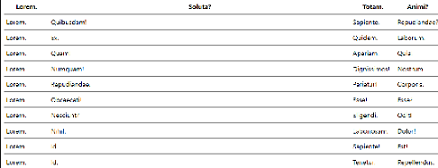
테이블 element와 div로 만드는 것의 차이? 원하는대로 상황따라 다르게 사용된다. 알아서 사용해보자.
55 flex-margin
flex container안에서 마진을 auto로 주면 알아서 위치하게 된다.
<style>
    .container{
        background-color: chocolate;
        width: 300px;
        height: 200px;
        display: flex;
    }
    .item{
        background-color: aqua;
        margin-left: auto;
        margin-right: auto;
    }
</style>
<div class="container">
<div class="item">
Lorem.
</div>
</div>56. flex-margin-ex
46번 flexbox-ex할때 컨테이너에 컨테이너를 담고 justify-content: space-between;를 이용해서 거리를 벌렷엇다.
굳이 그럴 필요가 없고 margin을 사용한다면 더 깔끔하게 만들 수 있다.
.container {
    display: flex;
    background-color: black;
    color: white;
}

.item {
    padding: 7px 5px;
    font-size: 24px;
    font-weight: bold;
}

.mr-auto {
    margin-right: auto;
}
<div class="item mr-auto">
Ipsa!
</div>밀어내고 싶은 부분의 컨텐츠에 margin-right : auto;를 넣어줘서 알아서 밀어내도록 만들어준다.
코드가 조금 더 간결해졌다.
57. w3cshools 비슷하게 만들기
간단한 사이트를 만들어보자 그냥 flex를 쌓는거임.
같지 않지만 대충 비슷하게 만들어졋다.
58. pseudo-class-selector
하나의 element 가로방향 배치 세로방향배치 마진 패딩 등 배웠다. 적절한 위치에 놓을 수 있게 되었다.
몇개월 후에 사용하니 다까먹는다.
배치를 하고 나서 봣더니 element가 고정된 스타일로 그대로 있는 경우도 있고 어떤것은 배경색이 바뀜
element가 튀어 나온다던가의 효과를 주고 싶다.
설렉터중 :nth-child처럼 :이 하나 붙은것을 pseudo class라고 한다.
개발자가 class를 준적이없는데 클래스처럼 사용하는 셀렉터를 의미한다.
발음 : 스도우 뜻 : 가짜의
pseudo는 프로그래밍을 하면서 종종 보게 되게 된다. 가짜 난수 가짜 클래스 등을
59. :hover
마우스가 요소위에 있는 상태
 h1{
    background-color: black;
    color: white;
}

h1:hover{
    background-color: pink;
    color: darkgreen;
}
하면 마우스가 올라가면 우선순위가 얘가 높아서 실행됨.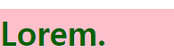
pseudo class selector
요소의 상태를 나타내는 선택자이다.
p element는 대표적인 블록이다. display: none;하면 안보임.
p{
    display: none;
}
h1:hover + p{
    display: block;
}
하면 h1에 인접한 p 가 마우스가 올라갔을 때 다시 블록이되서 나타나게 된다.
60. :checked
radio 혹은 checkbox가 체크된 상태를 나타내는 것을 말한다
emmet에서 input:c하면 체크박스가 생김
input:checked{
    height: 20px;
    width: 20px;
}
<input type="checkbox">체크를 하면 박스크기가 커지게 설정했다.
input:r 라디오 박스 생성
<input type="radio" name="" id="">61. :focus
focus 선택된 것의 상태를 변경할 수 있음.
input:focus{
    background-color: yellow;
}
<input type="text">
<input type="text">input box가 선택되엇을때 노란색이 되도록 설정햇다.
개발자도구에 포커스된 상태를 보고 싶은데 그냥은 안보임. 자주사용해서 아예 메뉴를 따로 빼놔서 :hov메뉴를 눌러서 보면된다.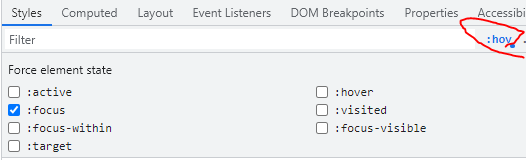
이외에도 pseudo class가 많이 있는데 그때그때 필요한 상황에서 알아보자.
확인문제풀어보기 링크관련 pseudo class
:link / a:link / Selects all unvisited links 방문안한 a링크들을 모두 선택하기
:visited / a:visited / Selects all visited links 방문한 링크 지정하기
62. font
사이트를 만들때 글씨체를 적절하게 선택하고 싶다. 웹어플리케이션의 폰트를 어떻게 결정해야할까?
브라우저 기본스타일 폰트는 환경설정마다 다르다.
h1:nth-child(1){
    font-family: Georgia, 'Times New Roman', Times, serif;
}
h1:nth-child(2){
    font-family: 'Courier New', Courier, monospace;
}

h1:nth-child(3){
    font-family: D2Coing, 'Courier New';
}
font-family 속성으로 글씨체를 변경할 수 있다.
되게 여러가지가 작성되어있는데 이 font들이 컴퓨터에 있어야한다.
있으면 1번 없으면 2번 없으면 3번 이런식으로 순서대로 간다.
폰트이름이 단어두개이상이면 "" 혹은 '' 안에 넣어서 보여줌.
과거에 vscode설정할때 font family설정햇엇는데
D2Coding, Consolas, 'Courier New', monospace로 맨앞에만 추가햇는데 이 설정같은 순서이다.
62.1 마지막 단어는 폰트가 아니라 폰트의 그룹이다.
https://www.w3schools.com/css/css_font.asp
1.Serif fonts have a small stroke at the edges of each letter. They create a sense of formality and elegance.
각 문자 끝에 살짝 꺾임
2.Sans-serif fonts have clean lines (no small strokes attached). They create a modern and minimalistic look.
Sans~가없다. 꺾는게 없음.
3.Monospace fonts - here all the letters have the same fixed width. They create a mechanical look.
공간이하나다 너비가 일정하다. 각문자의 너비가 일정하다. 코딩용 폰트에서주로 많이 쓰임. 줄을일정하게 맞추려고
4.Cursive fonts imitate human handwriting.
5.Fantasy fonts are decorative/playful fonts.
브라우저에 설정들어가면 글꼴 맞춤설정이 있다. 브라우저 기본의 글꼴을 뭐로 할건지 정할 수 있다.
h1:nth-child(4){
    font-family: monospace;
}
로하면 글꼴타입이 지정이 되어서 3번째와 같은 모양이 된다.
font-family 쓸때 뭘 주의해야하나? 없으면 마지막 설정을 따라가도록 폰트의 그룹을 꼭 작성해주는게 좋다.
62.2 web font
그럼 우리 컴퓨터에 있는거만 사용할수있는것은 말이안된다!
대부분 유료이다.
https://fonts.google.com/ 구글에서 무료 폰트들을 지원한다.
컴퓨터에 설치되어 있지 않아도 사용할 수 있도록 해보자.
폰트가 파일크기가 크다. 필요한것만 선택하자.
사진참조
head부분에 css파일을 가져올때 필요한 링크를 입력하고 font-family를 사용하면된다.
다운로드 받지 않아도 폰트를 사용할 수 있는 기능을 활용한 것이다.
2023.02.01 후기
div나 span 박스를 잘 이용할 필요가 있다. 박스안에 박스를 담고 박스안에 박스를 담으면서 만들어 나가는 형식을 잘 이용하면 디자인을 잘 할 수 있다. 대충 사이트를 비슷하게 만들었는데 이렇게 차곡차곡 쌓으면 하나의 사이트가 될 수 있을 것 같다는 생각이 든다. 복잡한 내용은 노가다를 통해서 만들어진다는 것을 알았다.
또한 마우스가 올라갓을때 색이 바뀌는 것 이런거 자바스크립트인줄 알았는데 css엿다는게 놀랍다. css기능이 생각보다 무궁무진한 것 같다.
어제는 정말 안되는 날이었는데 오늘 다시 배우니 새롭게 재밌다. 이런 기분을 유지하면 좋겠지만 혼자 공부할때도 왓다갓다 했던 것 같다. 미리 예습을 하고 있어 진도를 따라잡을 수 있지만 만약 처음 배우는 거였다면 많이 헤맷을 것 같다. 예습과 이렇게 블로그 작성과 같은 복습을 철저히 하자. 중요한 것은 꺾이지 않는 마음이다.